🎉Ultra is live · 50% off — limited time
Local converter

OBJ to DXF Converter

Convert OBJ files to DXF locally in your browser for faster handoff across 3D tools.

Processed locally
No signup required
Files stay on your device
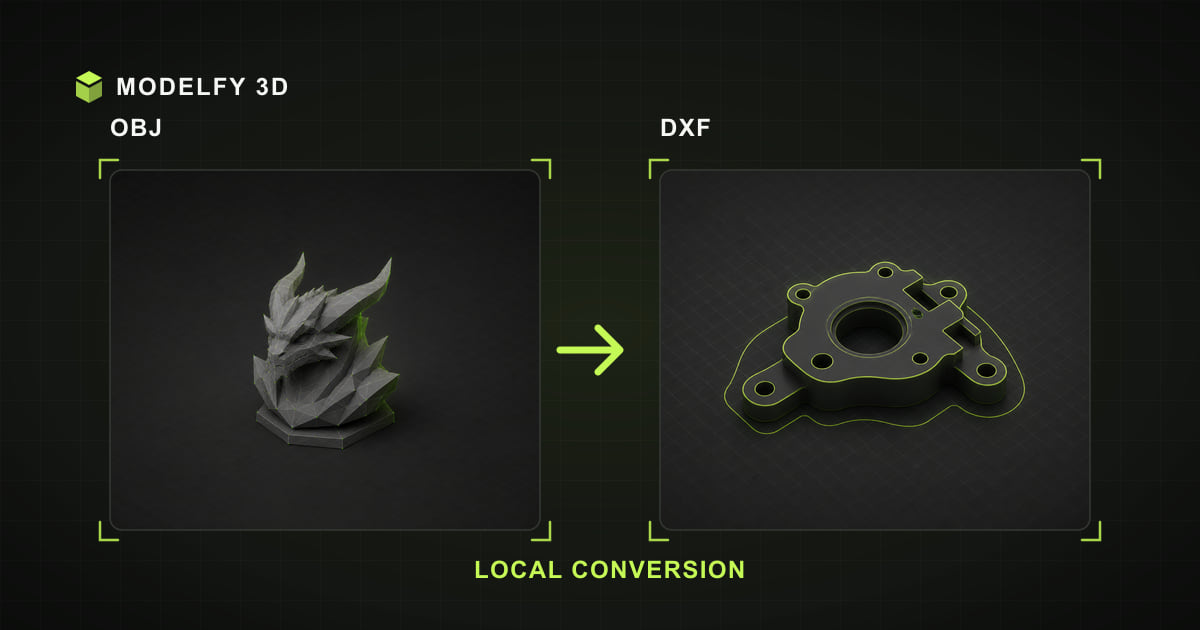
Browser-local OBJ to DXF conversion illustration

Private browser conversion

Files are converted locally in your browser.

1Upload2Convert3Download

Browser-local workflow

How this tool works

  1. Step 1

    OBJ

    Choose a OBJ file from this device.

  2. Step 2

    Browser-local conversion

    The supported geometry is converted in this browser.

  3. Step 3

    DXF

    Download the DXF result when conversion is complete.

Limited

  • Geometry

Lost

  • Materials
  • Textures
  • Scene hierarchy

Direct answer

What is preserved when converting OBJ to DXF?

This converter processes the OBJ file locally in your browser and downloads the converted DXF file. The source is rewritten through the browser mesh pipeline. Materials, textures, and scene hierarchy are not included in the downloaded file.

Before you convert

OBJ to DXF compatibility

These results describe Modelfy's current browser loader and exporter, not every feature allowed by the file specifications.

Data preserved, limited, or lost when converting OBJ to DXF
DataResultWhat this implementation does
GeometryLimitedThe custom writer exports triangle surfaces as R12 3DFACE entities, not editable CAD solids or curves.
MaterialsNot exportedThe uploader accepts one OBJ file, so a companion .mtl file is not read.
TexturesNot exportedThe uploader accepts one OBJ file, so images referenced by a companion .mtl file are not read.
Vertex colorsNot in sourceOBJ does not define vertex colors to carry into DXF.
AnimationNot in sourceOBJ does not define animation to carry into DXF.
Scene hierarchyNot exportedDXF output from this tool does not store scene hierarchy.
Units and scaleNot in sourceOBJ does not define units and scale to carry into DXF.

Verify after export

  • Confirm scale and units when opening the DXF file in the destination application.
  • Compare material colors and textures with the browser preview before using the result in production.
  • Open the DXF in the destination CAD tool and confirm that triangle 3DFACE surfaces suit the workflow.

Why choose this OBJ to DXF converter

Local OBJ decoding

The selected OBJ model file is decoded and rewritten as DXF on your device; the model file is not uploaded to Modelfy.

OBJ to DXF data report

The compatibility table explains how this browser pipeline rewrites OBJ data for DXF.

DXF output checks

Geometry is limited; review the implementation detail and verify the downloaded file in your destination tool.

Preview before export

Inspect the browser preview before converting, then use the post-export checklist to confirm the DXF result.

How to convert OBJ to DXF online

  1. 01

    Upload your OBJ file

    Drag and drop the file into the converter, or click Upload. OBJ inputs up to 10 MB are processed locally.

  2. 02

    Convert to DXF

    Preview the model in 3D, then click Convert. The conversion runs locally in the browser; processing time depends on model complexity and device resources.

  3. 03

    Download the DXF file

    Your DXF file downloads straight to your device, ready for the next tool in your pipeline.

About the OBJ file format

Wavefront OBJ

The Wavefront OBJ format has been a de facto interchange standard since the 1990s. It stores vertex positions, normals, texture coordinates, and faces in plain text, with materials described in a companion .mtl file.

OBJ does not support animation or scene hierarchies, which keeps it simple and portable across many modeling, printing, and rendering tools.

Format reference: Library of Congress OBJ format description

Strengths

  • Broad support across established 3D tools
  • Simple structure that is easy to debug
  • Reliable geometry interchange

Commonly used for

  • Static model exchange between tools
  • 3D printing preparation
  • Photogrammetry and scan output

About the DXF file format

Drawing Exchange Format

DXF was introduced by Autodesk in 1982 as an open, text-based twin of the DWG drawing format. It describes drafting entities — lines, polylines, arcs, circles — and 3D geometry as 3DFACE entities or polyface meshes.

This browser tool renders both: 2D drawings appear as line work, while 3DFACE and polyface entities render as solid meshes.

Format reference: Autodesk DXF reference

Strengths

  • Open, text-based CAD exchange
  • Universal 2D drafting support
  • 3DFACE mesh geometry support

Commonly used for

  • 2D drafting exchange
  • Laser cutting and CNC outlines
  • Legacy CAD data recovery

Frequently asked questions

Is my OBJ model file uploaded to a server?

The selected OBJ model file is processed by the browser and is not uploaded to Modelfy. Website code and static assets still load over the network like a normal web page.

Will I lose quality converting OBJ to DXF?

Mesh geometry is preserved as closely as the DXF format allows. The target format may triangulate geometry or drop unsupported features such as animations, materials, textures, or scene hierarchy.

Is the OBJ to DXF converter free to use?

Yes. The browser viewer, converter, and local 3D text tool require no account and add no watermark. Input limits vary by format, up to 50 MB; AI model generation is a separate credit-based product.

What is the maximum file size?

OBJ inputs up to 10 MB are accepted. The format-specific limit keeps browser-local parsing bounded; actual processing also depends on available memory, model complexity, and device performance.

Where are the materials and textures of my OBJ file?

OBJ stores materials in a separate .mtl file with texture images alongside it. This single-file browser tool does not request those companions, so it displays supported OBJ geometry with a neutral material; review the compatibility table before conversion.

Can a 2D DXF drawing be converted to a 3D model?

Drawings with closed polylines or circles are extruded into solid 3D shapes during conversion. Files containing only open curves (individual lines and arcs) have no enclosed area to extrude and cannot form a mesh.

Related converters

AI 3D generation

From a single image to a production-ready 3D model

These browser tools stay free for viewing and converting files you already have. When the model does not exist yet, Modelfy generates a textured mesh from one reference image — the first one is free.